
 Odio el Chocolate
 Cobb Can Move
 Trees Hate You
 You Are Hamster
PLAY · OBSERVE · TRY AGAIN
Frankie's Fun House
Play Frankie's Fun House with an illustrated object-inspection guide, mobile host control reference and a practical puzzle notebook for your first visit.
Phone: the host includes touch controls. Start with a short control check; physical-phone compatibility is not fully verified.
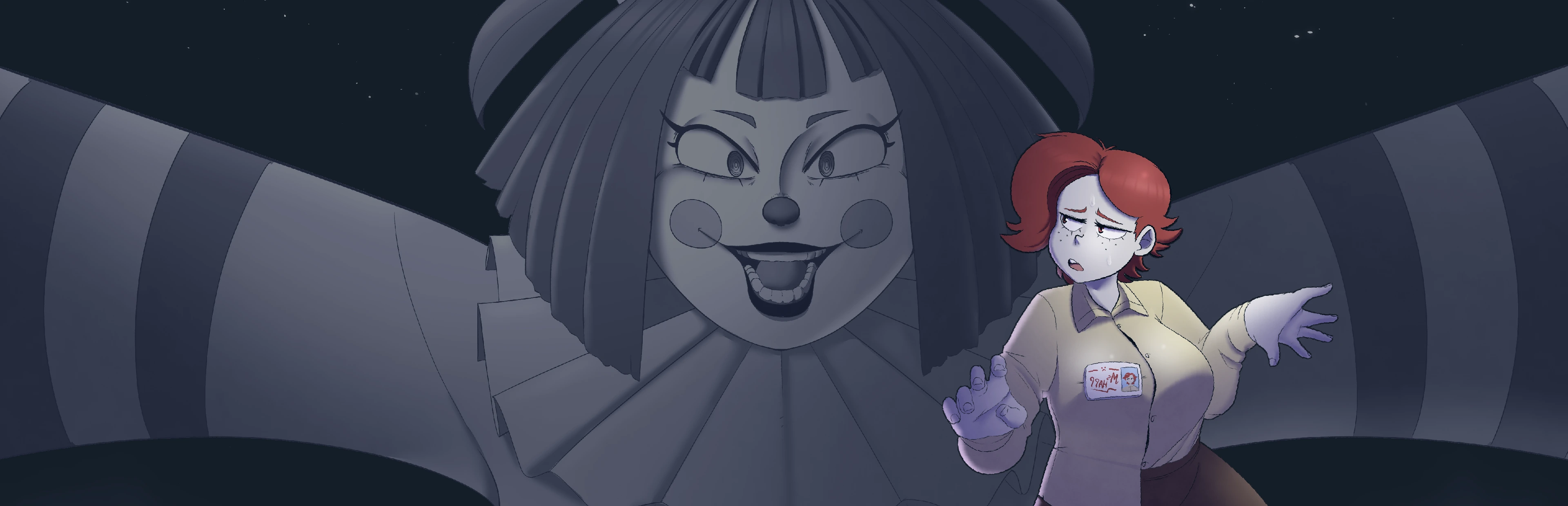
Press Play to load the external game. On a phone, landscape gives the frame more room. The source link remains available if loading stalls.
More games to explore
Prepare your next attempt
Choose the help for your device. These controls explain the setup; they do not send keys into the game.
Use the host’s visible controls. Test movement, looking and interaction as applicable before a longer session. Use landscape, and open the source if browser fullscreen is unavailable.
0/4 preparation steps checked for Frankie's Fun House. This visit only; not a game save.
FIELD NOTES · 1
Leave the school for a stranger workday
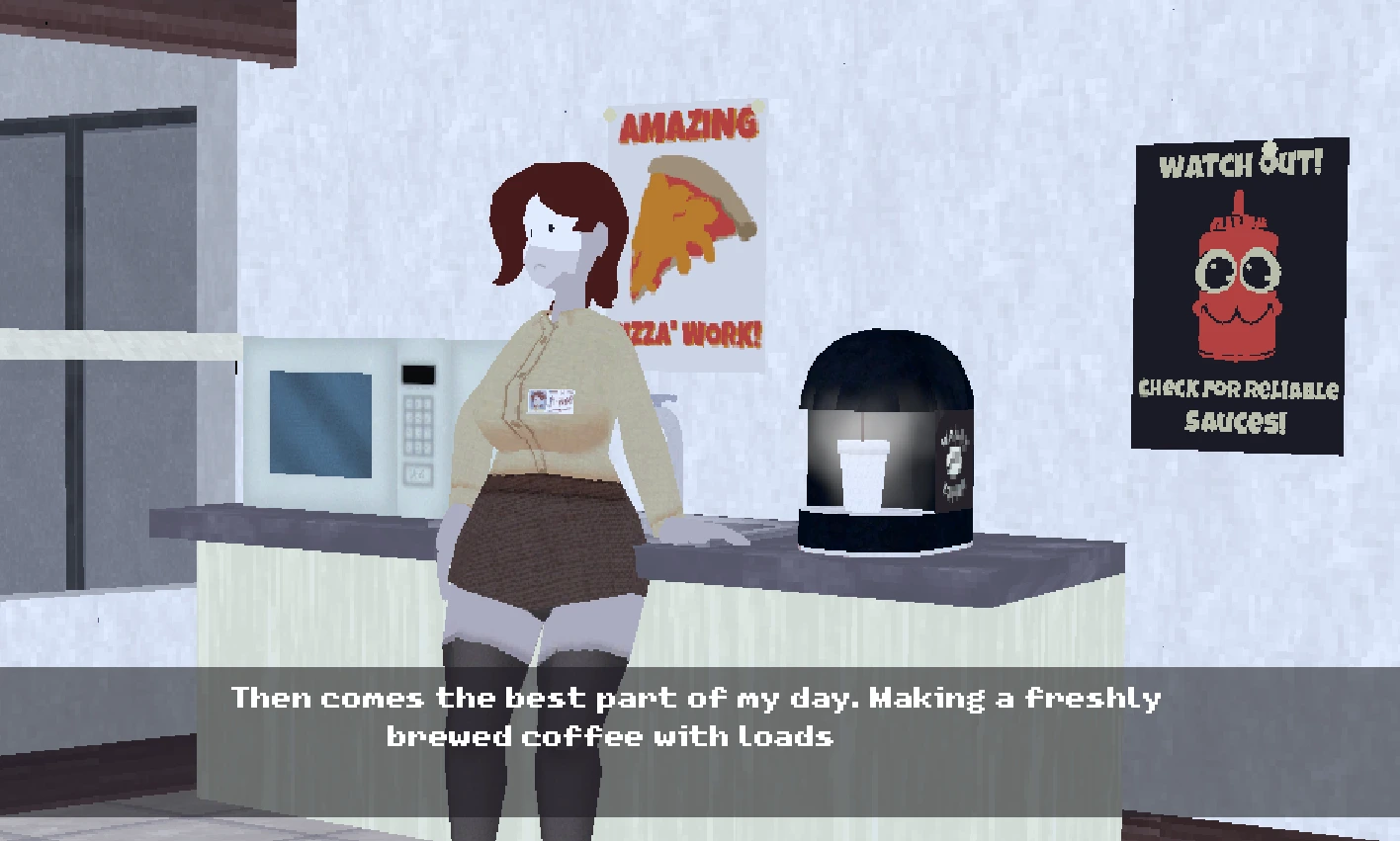
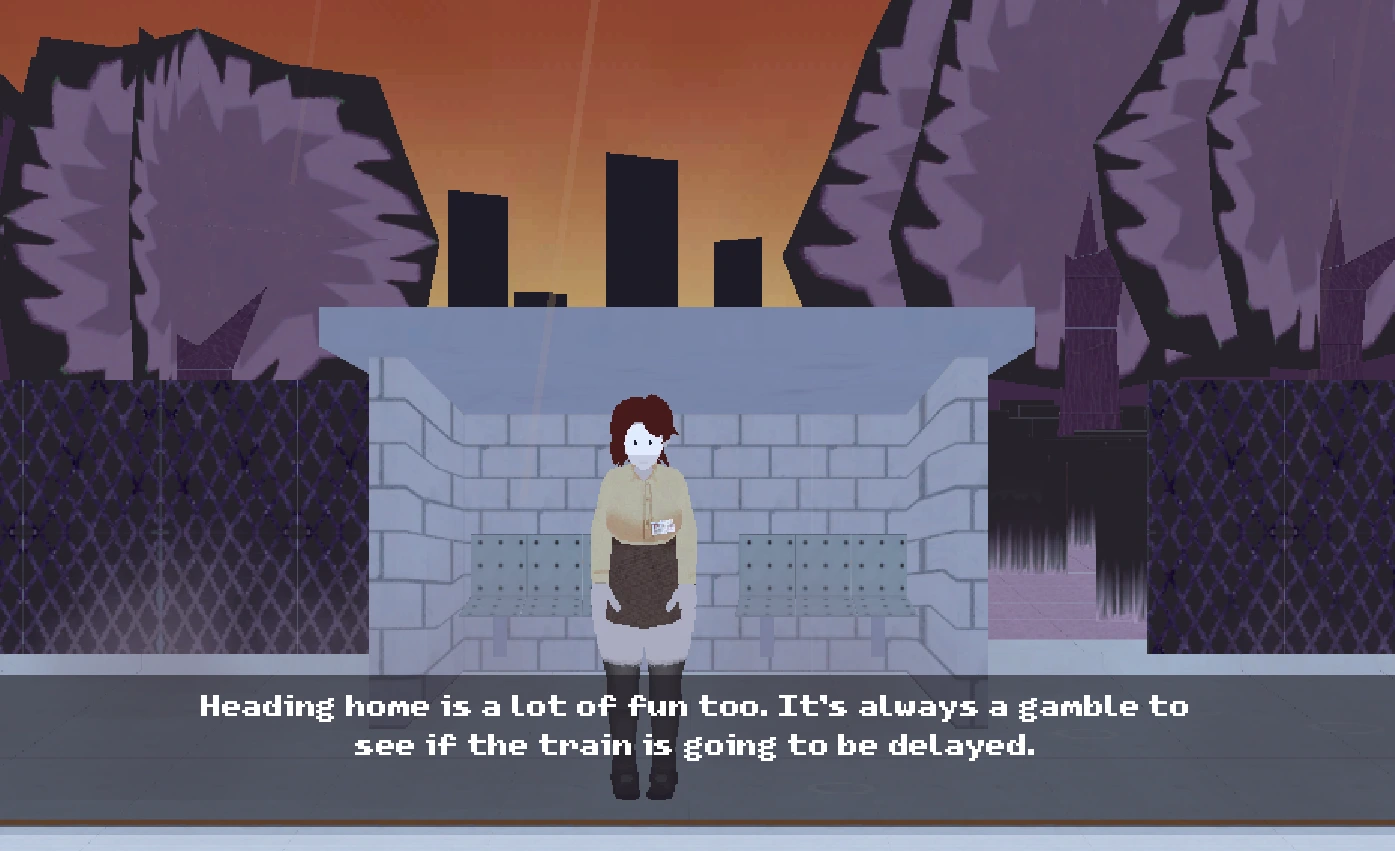
Frankie's Fun House offers a slower kind of unease than a chase through Odio el Chocolate. Its existing game presentation follows Ms. Happ from an office routine into an unusual attraction, using rooms, objects and theatrical details to encourage investigation. The useful skill is not simply reacting quickly. It is noticing which part of a scene deserves a closer look.
This guide approaches the game as an inspection puzzle adventure. It helps you organize what you see without publishing a sequence of unverified item combinations or claiming to reveal every ending. Start with the room in front of you, learn how the current interface works and keep one question in mind. A clear question gives exploration more direction than clicking everything as fast as possible.
The browser edition is hosted separately from this page. It has its own loading, input and game state. Our Play button starts that hosted frame; the guide, screenshots and checklist remain useful before the engine finishes loading. The page does not install the original desktop build or replace the instructions shown by the game itself.
FIELD NOTES · 2
Inspect before collecting conclusions
Begin by looking over the entire visible scene. Identify exits, prominent objects and interface elements before selecting a single detail. The most colorful prop is not automatically the most useful one. A quiet label, a change in perspective or a line of text can help explain why a room exists and what the game expects you to notice.
When you inspect something, read what the interface says before dismissing it. Separate an object's appearance from what you have actually learned about it. A picture of a tool does not prove that it is usable, and a close-up does not establish that it belongs in inventory. Follow the feedback that the current interaction provides.
Use a simple distinction in your own notes: seen, inspected and understood. These are different stages. You can have seen a prop repeatedly without examining it, or inspected it without understanding its relevance. That distinction reduces the feeling of being stuck in a room where you believe everything has already been tried, even though several actions were only assumed.
FIELD NOTES · 3
A room-by-room investigation loop
Choose a consistent direction for your first survey, such as moving your attention from left to right. The direction itself is unimportant; consistency helps you remember which areas you actually checked. After completing one survey, look at the interface and any collected information before repeating the same clicks. A second pass should have a reason.
Try naming the unresolved task in ordinary language. You may need to understand an object, identify a way forward or interpret a message. Do not jump straight to an imagined solution when the problem is still unclear. The best next action is often the one that gives more information rather than the one that looks most like progress.
If the scene changes after an interaction, resurvey the parts most likely to have been affected. You do not need to treat every unchanged surface as new. This creates a practical exploration loop: observe, act, read the result and compare. It is editorial guidance for approaching the puzzle, not a claim that every room follows an identical scripted sequence.
FIELD NOTES · 4
Work with the inspection interface
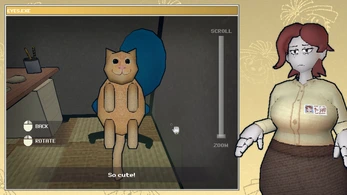
The reference images show an object-inspection view with rotation and zoom guidance. When that interface appears in your session, give its labels priority. Learn the distinction between moving through a room and manipulating an object in close-up. A movement key or pointer gesture can have a different purpose depending on the current screen.
Rotate an inspectable object slowly enough to notice changes in its visible surfaces. If a detail looks important, describe it before leaving the view. This is more dependable than trying to remember the whole object later. Do not assume that every object contains a hidden clue; inspection can also establish that a tempting detail has no immediate relevance.
When using zoom, preserve enough context to recognize what you are looking at. Extreme magnification can make an ordinary surface appear significant simply because it fills the screen. Move back to the wider view and compare. On a small display, opening the larger game view can be more helpful than repeatedly zooming the browser page itself.
FIELD NOTES · 5
Keep an inventory hypothesis modest
If the game offers an item or inventory interaction, begin with a specific hypothesis about its use. Describe what the item appears to do and what feature of the scene makes that action plausible. That gives you a meaningful test. Trying every item against every surface can generate many clicks while revealing very little about why anything happened.
After an unsuccessful attempt, read any feedback before changing the hypothesis. A refusal, a new description or a different cursor can matter. If there is no visible response, first confirm that you selected the intended item or target. A missed touch on a small screen is different from the game rejecting a logically appropriate action.
This page does not provide an invented recipe list for the puzzles. We would rather help you maintain a reliable chain of observations than claim a precise combination from screenshots alone. Keep your own record short: item, possible use, result. When new evidence appears, revise that note instead of repeating an old assumption because it once sounded convincing.
FIELD NOTES · 6
Read character and environmental text together
Dialogue and written details can change the meaning of the props around them. Read them alongside the scene rather than treating them as an interruption before the next click. Ms. Happ's perspective is part of how this strange setting is presented, so a description may be valuable even when it does not immediately unlock an obvious interaction.
Avoid racing through several lines while simultaneously moving around the room. When you lose track of a message, the rest of the scene can feel arbitrary. Stop input while reading where possible, then choose one action that follows from what you understood. You do not need a perfect memory; you need enough context to make the next experiment sensible.
If a reference video includes a later scene, remember that it can reveal more than a single puzzle answer. Decide whether you want that information before playing it. The two optional videos below are not synchronized to your game state and may show a different build. Use them as references, not as proof that your next screen must match theirs.
FIELD NOTES · 7
The phone controls supplied by the host
The current hosted entry includes a mobile control panel. Its visible controls include W, A, S and D movement or turning buttons, Q and E side movement, an RMB mode and a fullscreen action. These belong to the game host, rather than being decorative controls placed over an inaccessible frame by this page.
The host also labels tapping the game as an interaction method. Its RMB control is described as using a right click for the next game tap. Check that mode before selecting a small object so you know which action you intend to send. A tap in a room and a drag in an inspection view may need different handling, so follow the visible interface.
These observations establish that a touch layer exists in the host code; they do not prove every puzzle action works on every phone. Begin with a movement and one simple inspection. Then test the action needed by the current scene. If a required gesture fails, record that exact action and use a desktop input method rather than assuming the whole adventure is compatible.
FIELD NOTES · 8
Give a phone screen enough room
Landscape orientation usually offers more horizontal space for a scene and its side interface. Rotate before starting a detailed inspection if that makes the controls easier to read. This page keeps the game frame proportional and places its launch and utility buttons outside the game interaction area, so page controls do not cover a prop you are trying to select.
Use the fullscreen icon if your browser supports it. When it does not, the page reports that limitation and leaves a direct-source link available. Fullscreen is a presentation option, not an extra game mode. It cannot repair a missing gesture or guarantee better frame rates, and a mobile browser may still reserve space for its own interface.
If you accidentally scroll the guide while trying to use the game, first check where your finger started. Touches on the surrounding page should continue to scroll normally. We do not disable page scrolling globally, because that would make a long guide difficult to use. Keep gameplay gestures inside the frame and use the chapter links when you want to return to reading.
FIELD NOTES · 9
When an action seems to do nothing
Ask whether the problem is selection, interpretation or input. Selection means you may have touched the wrong object. Interpretation means the object responded but you expected a different result. Input means the game did not receive the intended action at all. Those causes call for different next steps, so avoid treating every quiet response as a broken puzzle.
For selection, enlarge the view and try the same target carefully. For interpretation, reread the latest description and reconsider the hypothesis. For input, release any held controls and compare another simple action. Do not reload immediately if the game is still responding elsewhere. A reload can discard useful progress while leaving the original misunderstanding unresolved.
If the engine appears frozen, note the last action before the freeze and whether audio or animation continues. Compare the direct-source tab only after deciding what information you want from that test. Reports are more useful when they identify a particular inspect, rotate, move or tap action than when they simply say that the mobile game is broken.
FIELD NOTES · 10
Preserve the pleasure of solving it
A good hint narrows a question without taking the whole discovery away. When you use this guide, choose the smallest section that addresses your problem. Try another observation before turning to a full recording. This lets you keep the surprise of unfamiliar rooms while avoiding an unproductive loop of identical clicks.
Before leaving a session, use any pause or save options the game itself provides. Our preparation checklist is only a reading aid and does not preserve inventory, dialogue or scene state. We do not promise that closing a tab or installing the website will keep an unfinished adventure. If continuity matters, verify the game's behavior before ending a long session.
When you want a faster challenge afterward, return to Odio el Chocolate or try Cobb Can Move. Trees Hate You offers a different kind of environmental misdirection through short traps and retries. The collection is deliberately varied, but each page explains its own control limits so you can choose by the experience and device you actually have.
Optional video references
Later scenes and version differences may appear. Videos load only when selected.

Questions before your next run
What kind of game is this?
A first-person point-and-click puzzle adventure focused on rooms, objects and observation.
Does the host have mobile controls?
Yes. The inspected host includes movement buttons, an RMB touch mode and fullscreen. Complete phone compatibility has not been verified.
What does RMB mean on mobile?
The host describes it as a right click for the next tap in the game. Check its active state before interacting.
Can I rotate inspected objects?
The reference inspection interface includes rotation guidance. Follow the current view’s controls; not every object has the same interaction.
Does the page save inventory?
No. The page checklist is separate from game state. Use any save option supplied by the game itself.
Why does fullscreen fail on my phone?
Browser support varies. Continue in the frame or use the direct-source link.
Are the videos spoiler-free?
No. They may show later scenes and a different build. Play them only when you want that reference.
Is this an Android APK?
No. This page opens the hosted web edition in an iframe; it does not install a native Android package.
Guide prepared October 31, 2026. Independent editorial guidance; phone layout and game input are separate compatibility checks. Game reference ↗